---
title: Manually Reconnecting a SolarEdge Inverter to Wi-Fi
description: Manually Reconnecting a SolarEdge Inverter to Wi-Fi
---
[Skip to content](https://knowledge-base.solarhub.net.au/manually-reconnecting-a-solaredge-inverter-to-the-internet#main-content)

- [Customer Portal](https://441665238.hs-sites-ap1.com/tickets-view)
Open main navigation
Close main navigation
- [Customer Portal](https://441665238.hs-sites-ap1.com/tickets-view)
How can we help you?
- There are no suggestions because the search field is empty.
1. [SolarHub Knowledge Base](https://knowledge-base.solarhub.net.au/?hsLang=en-au)
2. [Troubleshooting](https://knowledge-base.solarhub.net.au/troubleshooting?hsLang=en-au)
3. [SolarEdge](https://knowledge-base.solarhub.net.au/troubleshooting?hsLang=en-au#solaredge)
# Manually Reconnecting a SolarEdge Inverter to Wi-Fi
### Article Contents
**[Initial Steps](https://knowledge-base.solarhub.net.au/manually-reconnecting-a-solaredge-inverter-to-the-internet#initi)**
[**Video Demonstration**](https://knowledge-base.solarhub.net.au/manually-reconnecting-a-solaredge-inverter-to-the-internet#video)
**[Manual Reconnection through Commissioning Browser](https://knowledge-base.solarhub.net.au/manually-reconnecting-a-solaredge-inverter-to-the-internet#man)**
**[Next Steps](https://knowledge-base.solarhub.net.au/manually-reconnecting-a-solaredge-inverter-to-the-internet#next)**
### Initial Steps
- **Test SolarEdge App Reconnection:** Most connection issues can be resolved through the SolarEdge App (see links below for guides on methods in relation to your model). If this method still fails, it can be typically because either your inverter or your app can't detect your internet. Continue with the procedure outlined below.
- **[Screenless Inverters](https://knowledge-base.solarhub.net.au/reconnecting-a-screenless-solaredge-inverter-to-wifi?hsLang=en-au)**
- **[Screened Inverters](https://knowledge-base.solarhub.net.au/reconnecting-a-screened-solaredge-inverter-to-the-internet?hsLang=en-au)**
- **Ensure Correct Wi-Fi Connection:** All inverter connections require a 2.4GHz home internet connection. If your current internet plan and router only allow 5.0GHz connection, contact your internet provider to resolve this issue.
- **Have Wi-Fi Password Ready:** During the connection process, your device must stay within 1 metre of your inverter, otherwise it will disconnect.
- **Wi-Fi Strength:** Ensure that the connection to your inverter is strong enough to operate. If your connection isn't strong, you may need to consider the use of a Wi-Fi extender. There are two methods of testing your connection:
- **Quick Method:** Seeing how many bars of internet connection your smartphone or tablet receives when standing next to your inverter.
- **Accurate Method:** Measuring your connection strength via website or app. We personally recommend using [WiFiman by Ubiquiti](https://wifiman.com/).
| ### Video Demonstration | |
| --- | --- |
### Manual Reconnection through Commissioning Browser
| **Step 1: Resetting your Inverter for Pairing** - Locate the ON/OFF/P toggle switch on your inverter. - Move the switch to the ‘P’ position (to the left) and hold for 30 seconds. The Blue LED light will start to blink. | **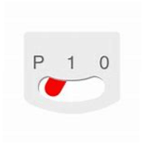** |
| --- | --- |
| **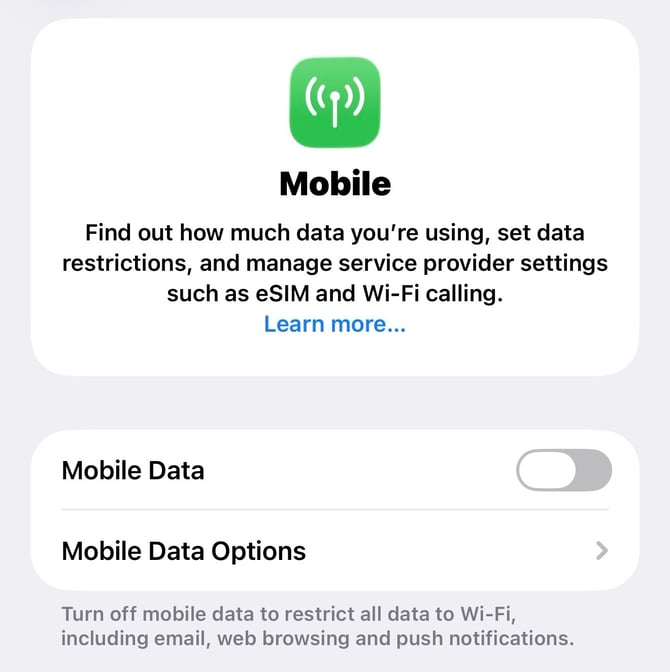-1.png?width=218&height=218&name=Untitled%20design%20(1)-1.png).png?width=500&height=500&name=LED%20Indicator%20(2).png)** | **Step 2: Connecting your Device to the Inverter ** - On your smartphone or tablet, go into your settings and turn off your mobile data. - If not already on, turn on your smart device's Wi-Fi. - Connect with Inverter Wi-Fi network (SEDG-XXXXXXX). If this isn't showing, try turning on and off your Wi-Fi and ensuring you followed step 1 correctly. This will prompt you to type in a password. If you don't see this network option, you will need to [restart your inverter](https://knowledge-base.solarhub.net.au/power-cycling-your-solaredge-inverter?hsLang=en-au). - Locate the QR code on your inverter (typically found on the top right side of the system). Type the password into your smart device. - Once you are connected, click on the blue "i' icon. Scroll down until you see IP Address. Copy down the number. |
| --- | --- |
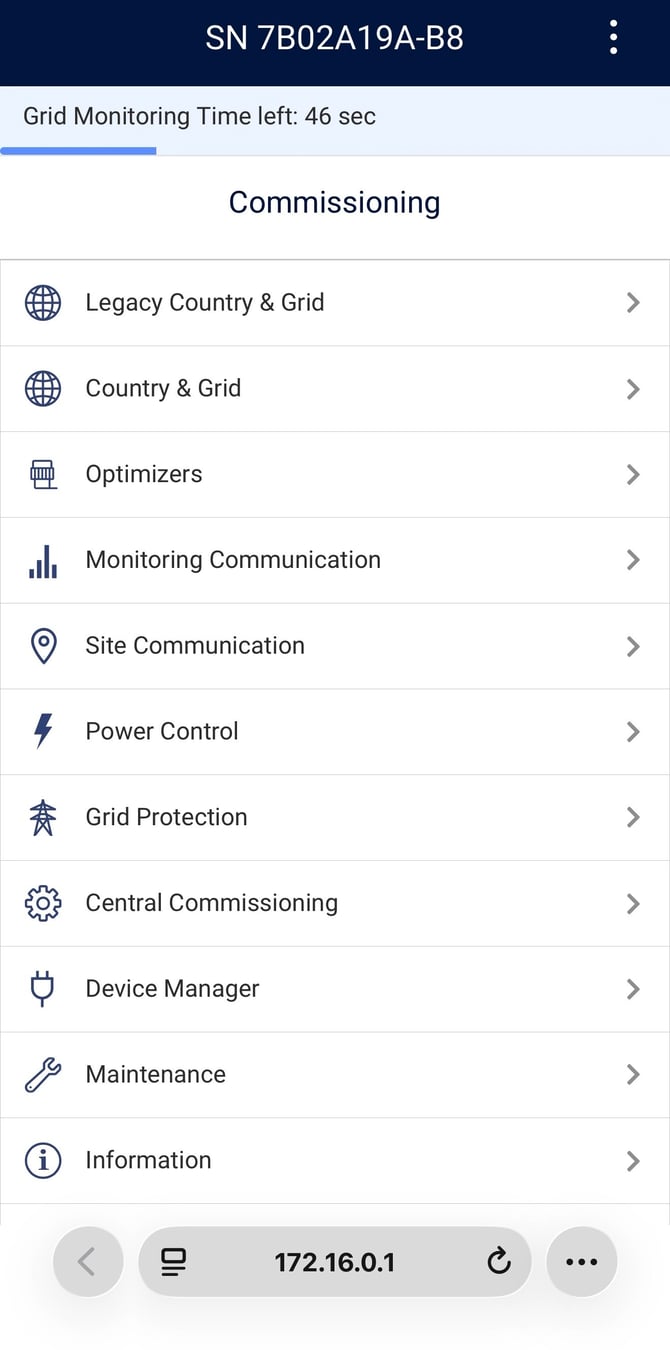
| **Step 3: Accessing Commissioning Page** - Open any internet browser on your device. - Type in the IP address from earlier into the search engine. This will take you to the commissioning page. |
| --- |
**Step 4: Connecting the Inverter to Wi-Fi**
- Click on the "Monitoring Communications" tab.
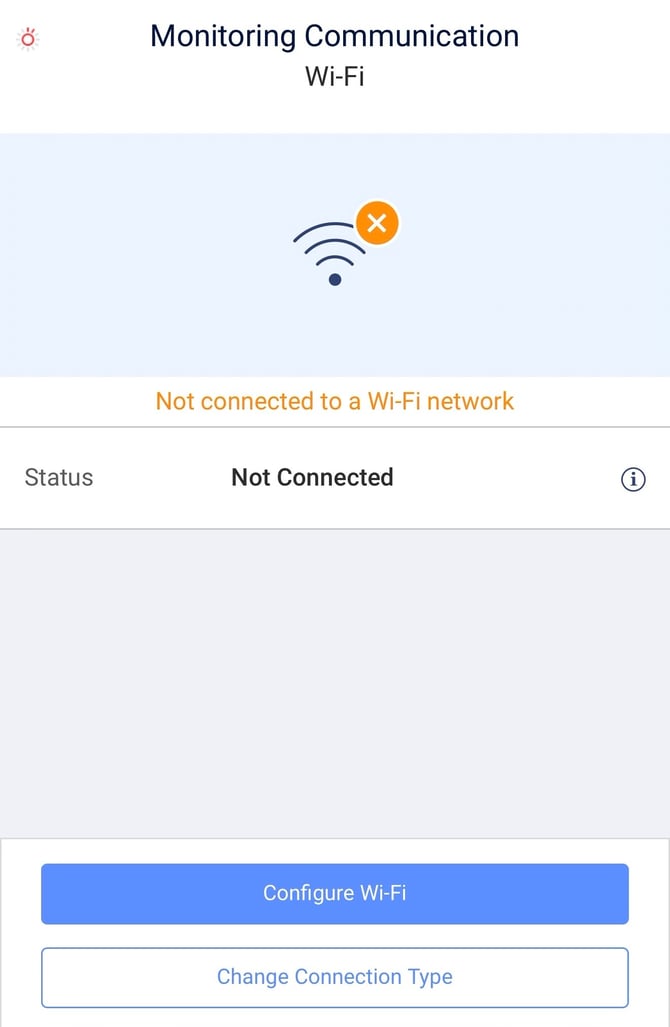
- From here, if it already comes up with Wi-Fi at the top of the page, click "Configure Wi-Fi".
- If it comes with a different connection type (e.g. Ethernet), click "Change Connection Type", select Wi-Fi and press done to continue. Then finally click "Configure Wi-Fi".
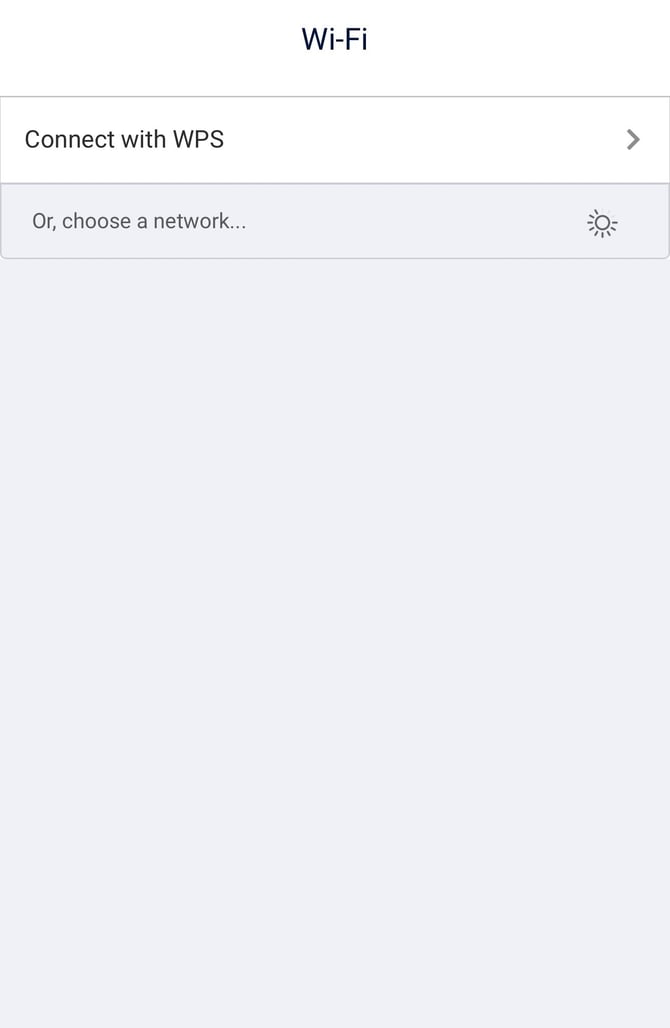
- Select your home network from the available options below, enter the password and finally click done. The blue LED light should now be activated.
|  |  |  |
| --- | --- | --- |
**Step 5: Reconnecting your Smart Device to your Home Wi-Fi**
- Go back into settings and into Wi-Fi. Reconnect your device back to your home network.
### Next Steps
When reconnecting your inverter back to the internet, your home data may be delayed. In majority of cases, your inverter should communicate back to your home monitoring relatively fast. If this isn't the case, give the system 24 hours to reconfigure and the issue should be fixed.
**Please note, this is the last self-treatment method before further escalation is required. If this process is unsuccessful, please refer to the [SolarEdge support page](https://www.solaredge.com/en/support/system-owner/configuring-inverter-communication) or [raise a support ticket](https://solarhub.net.au/raise-a-support-ticket/) with SolarHub’s Support and Service Team for further assistance.**
- [FAQs](https://knowledge-base.solarhub.net.au/faqs?hsLang=en-au#main-content)
- [General FAQs](https://knowledge-base.solarhub.net.au/faqs?hsLang=en-au#general-faqs)
- [Enphase](https://knowledge-base.solarhub.net.au/faqs?hsLang=en-au#enphase)
- [Fronius](https://knowledge-base.solarhub.net.au/faqs?hsLang=en-au#fronius)
- [Sigenergy](https://knowledge-base.solarhub.net.au/faqs?hsLang=en-au#sigenergy)
- [SolarEdge](https://knowledge-base.solarhub.net.au/faqs?hsLang=en-au#solaredge)
- [Tesla](https://knowledge-base.solarhub.net.au/faqs?hsLang=en-au#tesla)
- [Troubleshooting](https://knowledge-base.solarhub.net.au/troubleshooting?hsLang=en-au#main-content)
- [General Troubleshooting](https://knowledge-base.solarhub.net.au/troubleshooting?hsLang=en-au#general-troubleshooting)
- [Enphase](https://knowledge-base.solarhub.net.au/troubleshooting?hsLang=en-au#enphase)
- [Fronius](https://knowledge-base.solarhub.net.au/troubleshooting?hsLang=en-au#fronius)
- [Reposit](https://knowledge-base.solarhub.net.au/troubleshooting?hsLang=en-au#reposit)
- [Sigenergy](https://knowledge-base.solarhub.net.au/troubleshooting?hsLang=en-au#sigenergy)
- [SolarEdge](https://knowledge-base.solarhub.net.au/troubleshooting?hsLang=en-au#solaredge)
- [Tesla](https://knowledge-base.solarhub.net.au/troubleshooting?hsLang=en-au#tesla)
- [Sunpower](https://knowledge-base.solarhub.net.au/troubleshooting?hsLang=en-au#sunpower)
- [Sungrow](https://knowledge-base.solarhub.net.au/troubleshooting?hsLang=en-au#sungrow)
- [Solax](https://knowledge-base.solarhub.net.au/troubleshooting?hsLang=en-au#solax)
- [General](https://knowledge-base.solarhub.net.au/general?hsLang=en-au)
[](http://solarhub.net.au)
[mailto:email@email.com](mailto:email@email.com)
Copyright © 2025, SolarHub
```json
{
"@context" : "https://schema.org",
"@type" : "VideoObject",
"contentUrl" : "https://441665238.fs1.hubspotusercontent-ap1.net/hubfs/441665238/SolarEdge%20Manual%20Connection%20DEMO.mp4",
"dateModified" : "2026-06-04T03:15:34.578Z",
"duration" : "PT1M45.353S",
"height" : 1920,
"name" : "SolarEdge Manual Connection DEMO",
"thumbnailUrl" : "https://441665238.fs1.hubspotusercontent-ap1.net/hubfs/441665238/SolarEdge%20Manual%20Connection%20DEMO.mp4/medium.jpg",
"uploadDate" : "2025-11-11T23:23:19.364Z",
"width" : 1080
}
```