---
title: Reconnecting a Screened SolarEdge Inverter to the Wi-Fi
description: Reconnecting a Screened SolarEdge Inverter to the Wi-Fi
---
[Skip to content](https://knowledge-base.solarhub.net.au/reconnecting-a-screened-solaredge-inverter-to-the-internet#main-content)

- [Customer Portal](https://441665238.hs-sites-ap1.com/tickets-view)
Open main navigation
Close main navigation
- [Customer Portal](https://441665238.hs-sites-ap1.com/tickets-view)
How can we help you?
- There are no suggestions because the search field is empty.
1. [SolarHub Knowledge Base](https://knowledge-base.solarhub.net.au/?hsLang=en-au)
2. [Troubleshooting](https://knowledge-base.solarhub.net.au/troubleshooting?hsLang=en-au)
3. [SolarEdge](https://knowledge-base.solarhub.net.au/troubleshooting?hsLang=en-au#solaredge)
# Reconnecting a Screened SolarEdge Inverter to the Wi-Fi
### Article Contents
**[Relevant Models](https://knowledge-base.solarhub.net.au/reconnecting-a-screened-solaredge-inverter-to-the-internet#rele)**
**[Initial Steps](https://knowledge-base.solarhub.net.au/reconnecting-a-screened-solaredge-inverter-to-the-internet#init)**
**[Understanding your Inverter's Interface](https://knowledge-base.solarhub.net.au/reconnecting-a-screened-solaredge-inverter-to-the-internet#under)**
**[Connecting your Inverter: Non-HD Wave](https://knowledge-base.solarhub.net.au/reconnecting-a-screened-solaredge-inverter-to-the-internet#connn)**
**[Connecting your Inverter: HD Wave](https://knowledge-base.solarhub.net.au/reconnecting-a-screened-solaredge-inverter-to-the-internet#conn2)**
**[Next Steps](https://knowledge-base.solarhub.net.au/reconnecting-a-screened-solaredge-inverter-to-the-internet#next)**
### Relevant Models
- SolarEdge HD-Wave (Version Dependent)
- SolarEdge Hybrid
- Older SolarEdge Inverters
### Initial Steps
- **First, Try Power Cycling your System:** Sometimes just turning your system off and on should be able to fix the issue. Ensure that you follow correct procedure for power cycling your system. If unsuccessful, continue with Wi-Fi reconnection.
- **Ensure Correct Wi-Fi Connection:** All inverter connections require a 2.4GHz home internet connection. If your current internet plan and router only allow 5.0GHz connection, contact your internet provider to resolve this issue.
- **Wi-Fi Strength:** Ensure that the connection to your inverter is strong enough to operate. If your connection isn't strong, you may need to consider the use of a Wi-Fi extender. There are two methods of testing your connection:
- **Quick Method:** Seeing how many bars of internet connection your smartphone or tablet receives when standing next to your inverter.
- **Accurate Method:** Measuring your connection strength via website or app. We personally recommend using [WiFiman by Ubiquiti](https://wifiman.com/).
### Understanding your Inverter's Interface
| **Non-HD Wave:** On the bottom of your inverter, you will see a button next to your ON/OFF switch. This is the LCD (Liquid Crystal Display) button. This button can vary depending on the inverter. - To scroll through the menu of your inverter, briefly press down the LCD button. - To select an option on the menu, hold down the LCD button for 5 seconds. | 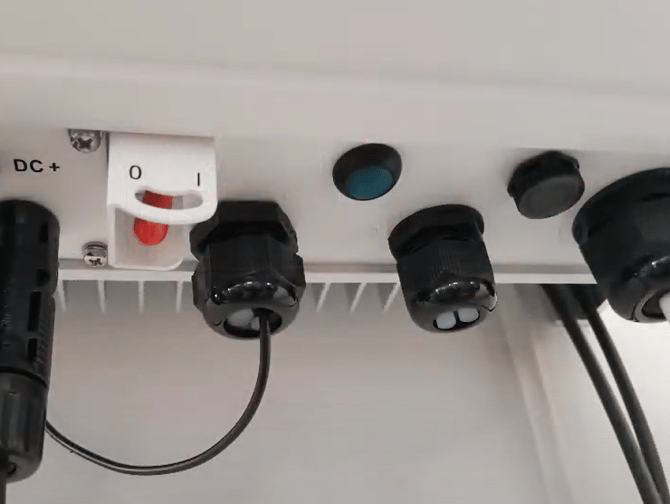 |
| --- | --- |
| 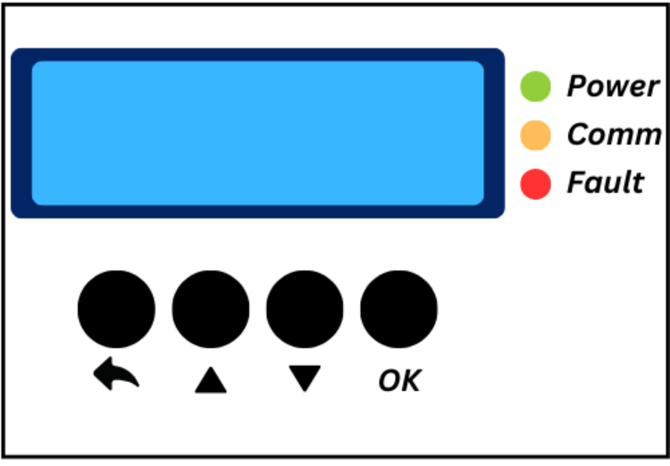 | **HD Wave:** For this model, the LCD buttons will be just under the screen on the front plate. There are four main buttons: - **Back Arrow Button:** Go back to previous screen - **Up Arrow Button:** Scroll up through options - **Down Arrow Button:** Scroll down through options - **OK Button:** Confirming selection |
### **Connecting your Inverter: Non-HD Wave**
**Step 1: Toggle the ON/OFF switch to OFF**
| **Step 2: Locating WPS (Wi-Fi Protected Setup) Mode on your Inverter** - Hold down the LCD button and the system settings will appear. - Scroll down to “Communication” and select. - Scroll down to “Wi-Fi Configuration” and select. - Scroll down to “WPS mode” and select. A waiting screen will appear on your inverter. | .png?width=500&height=500&name=OK%20(2).png) |
| --- | --- |
**Step 3: Sync from your Internet Router**
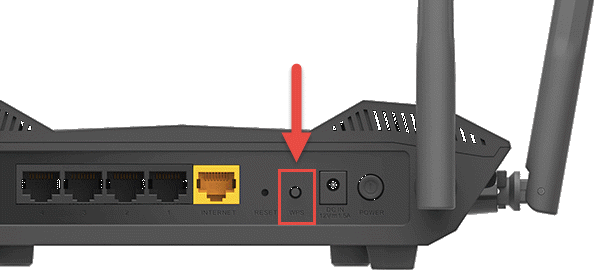
- Locate your internet modem. Once located, find the WPS button on your router (if you are using an older router that doesn’t have a WPS option, read our article on manually connecting your SolarEdge inverter).
- Push and hold it down until its LED lights up (refer to your router’s manual as light commands can vary between models).
| **Step 4: Confirm Connection on your Inverter** - Check the inverter’s screen to ensure that the waiting screen has disappeared. If it has disappeared, then your system should now be connected. - To return to the inverter’s main screen, scroll down to the bottom of each selection page and select “Exit” using the LCD button. - Check for the S\_OK on the main screen which indicates connection to the SolarEdge server (this might take 3 -5min). - **Step 5: Toggle the ON/OFF switch to ON** | .png?width=500&height=500&name=OK%20(3).png) |
| --- | --- |
### **Connecting your Inverter: HD Wave**
**Step 1: Toggle the ON/OFF switch to OFF**
**Step 2: Entering the Inverter's Settings**
- Hold down the OK button for 5 seconds and the system settings will appear.
- You will be prompted with this message: “PLEASE ENTER PASSWORD MESSAGE” (this is asking for the password to enter the inverter menu, not your Wi-Fi password yet).
- Enter the following password: Up, Down, OK, Up, Down, OK, Up, Down.
| **Step 3: Locating the Scan Networks Screen** - Scroll down to “Communication” and select it. - Scroll down to “Wi-Fi Configuration” and select it. - Scroll down to "Scan Networks" and select it. | .png?width=500&height=500&name=OK%20(4).png) |
| --- | --- |
**Step 4: Connecting your Inverter to your Home Network**
- Locate your home network and select it.
- Enter your router Wi-Fi password.
- Hold down the OK button until it says "Applying".
- Check for the S\_OK on the main screen which indicates connection to the SolarEdge server (this might take 3 -5min)
**Step 5: Toggle the ON/OFF switch to ON**
### Next Steps
When reconnecting your inverter back to the internet, your home data may be delayed. In majority of cases, your inverter should communicate back to your home monitoring relatively fast. If this isn't the case, give the system 24 hours to reconfigure and the issue should be fixed.
If this process is unsuccessful, or if any step throughout the process doesn't work (your SolarEdge app might not be able to recognise your Wi-Fi), try manually reconnecting your SolarEdge inverter.
**If you encounter any further issues during this process, please refer to the [SolarEdge support page](https://www.solaredge.com/en/support/system-owner/configuring-inverter-communication) or [raise a support ticket](https://solarhub.net.au/raise-a-support-ticket/) with SolarHub’s Support and Service Team for further assistance.**
- [FAQs](https://knowledge-base.solarhub.net.au/faqs?hsLang=en-au#main-content)
- [General FAQs](https://knowledge-base.solarhub.net.au/faqs?hsLang=en-au#general-faqs)
- [Enphase](https://knowledge-base.solarhub.net.au/faqs?hsLang=en-au#enphase)
- [Fronius](https://knowledge-base.solarhub.net.au/faqs?hsLang=en-au#fronius)
- [Sigenergy](https://knowledge-base.solarhub.net.au/faqs?hsLang=en-au#sigenergy)
- [SolarEdge](https://knowledge-base.solarhub.net.au/faqs?hsLang=en-au#solaredge)
- [Tesla](https://knowledge-base.solarhub.net.au/faqs?hsLang=en-au#tesla)
- [Troubleshooting](https://knowledge-base.solarhub.net.au/troubleshooting?hsLang=en-au#main-content)
- [General Troubleshooting](https://knowledge-base.solarhub.net.au/troubleshooting?hsLang=en-au#general-troubleshooting)
- [Enphase](https://knowledge-base.solarhub.net.au/troubleshooting?hsLang=en-au#enphase)
- [Fronius](https://knowledge-base.solarhub.net.au/troubleshooting?hsLang=en-au#fronius)
- [Reposit](https://knowledge-base.solarhub.net.au/troubleshooting?hsLang=en-au#reposit)
- [Sigenergy](https://knowledge-base.solarhub.net.au/troubleshooting?hsLang=en-au#sigenergy)
- [SolarEdge](https://knowledge-base.solarhub.net.au/troubleshooting?hsLang=en-au#solaredge)
- [Tesla](https://knowledge-base.solarhub.net.au/troubleshooting?hsLang=en-au#tesla)
- [Sunpower](https://knowledge-base.solarhub.net.au/troubleshooting?hsLang=en-au#sunpower)
- [Sungrow](https://knowledge-base.solarhub.net.au/troubleshooting?hsLang=en-au#sungrow)
- [Solax](https://knowledge-base.solarhub.net.au/troubleshooting?hsLang=en-au#solax)
- [General](https://knowledge-base.solarhub.net.au/general?hsLang=en-au)
[](http://solarhub.net.au)
[mailto:email@email.com](mailto:email@email.com)
Copyright © 2025, SolarHub