
Article Contents
Wired Connection
Step 1: Locate your Modem and LAN Cable
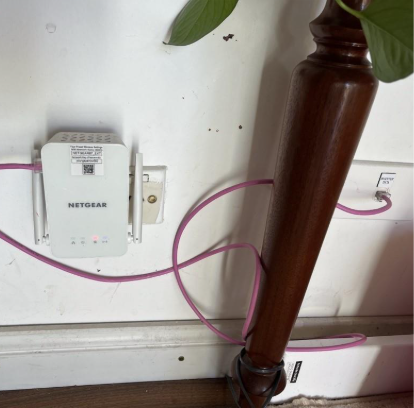
- Many of SolarHub's Reposit installations involve a LAN (local Area Network) connection. These are typically cabled with pink CAT5E data cabling, which is rated to 600V and makes it easily traceable.
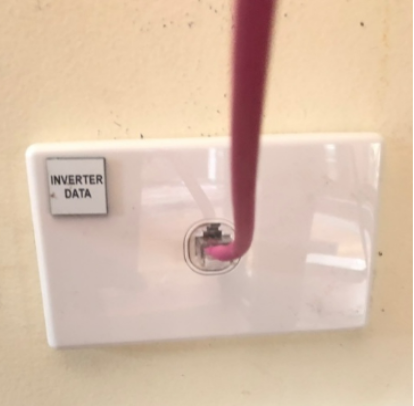
- Nearby the modem, there should be an ethernet port in your wall. This may be labelled as “Inverter Data” and/or have a pink LAN patch cable plugged into it.
- If you have an older system, it may be cabled with a blue CAT5 cable instead of a pink one, or it may not have a dedicated wall socket (in which case, the cable is likely coming directly out of the wall).
 |
 |
Step 2: Check for Connection Disruptions
- Check the connection of the cable running from the wall port to one of the ethernet ports on your modem. There are few common issues that may cause disruption to your LAN connection:
- Cable may have been bumped loose: Reconnect the cable back into both the modem and/or the ethernet port in your wall if applicable.
- Cable may be damaged: Replace with an equivalent CAT5e cable.
- Cable may be missing: Replace with an equivalent CAT5e cable.
- Connection from the router’s end may be down: The LAN connection may not be working for your system. A quick method to test this is by connecting your computer to your modem directly via the pink cable. If your computer isn't receiving internet, then your LAN is currently down. Wait for internet to reconnect or contact internet provider.
.png?width=500&height=500&name=Untitled%20design%20(8).png) |
.png?width=500&height=500&name=Untitled%20design%20(9).png) |
.png?width=500&height=500&name=Untitled%20design%20(10).png) |
Wireless Connection
If your system utilises a wireless connection instead, there are two reasons for your connection being disrupted.
- If you have changed or upgraded your router, the Reposit Support Team will be able to help you to connect your Reposit to your new router. Follow the website below to get in direct contact with Reposit.
- If your modem or internet is down, wait for your internet to reconnect or contact internet provider if further issues occur.
If you encounter any further issues during this process, raise a support ticket with SolarHub’s Support and Service Team for further assistance.