
Article Contents
Video Demonstration: App Reconnection
Reconnecting your IQ Gateway to Wi-Fi
Video Demonstration: App Reconnection
Initial Steps
- Ensure Correct Wi-Fi Connection: Most home systems require a 2.4GHz home connection. Enphase fortunately does not require a 2.4GHz network as it supports both 2.4GHz and 5GHz networks. However, for optimal performance, it is recommended to have a 2.4GHz signal if the gateway is located far from the Wi-Fi router. If this appears to be an issue, contact your internet provider to resolve this issue.
- Wi-Fi Strength: Ensure that the connection to your inverter is strong enough to operate. If your connection isn't strong, you may need to consider the use of a Wi-Fi extender. There are two methods of testing your connection:
- Quick Method: Seeing how many bars of internet connection your smartphone or tablet receives when standing next to your inverter.
- Accurate Method: Measuring your connection strength via website or app. We personally recommend using WiFiman by Ubiquiti.
Reconnecting your IQ Gateway to Wi-Fi
|
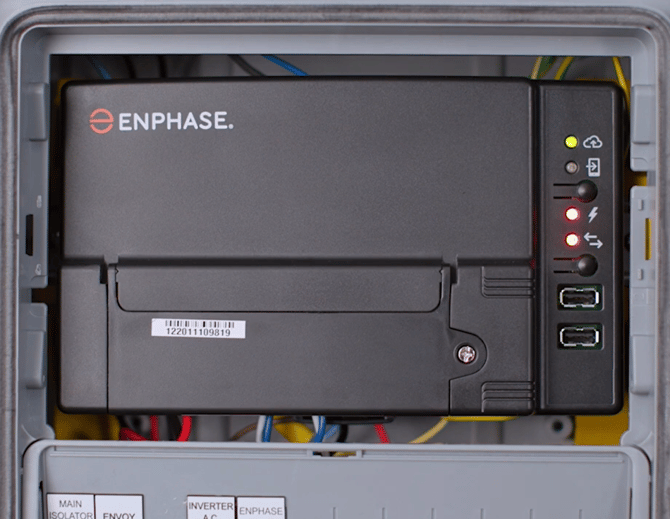
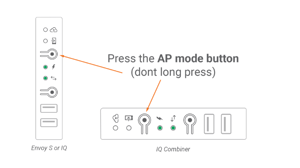
Step 1: Enable Gateway AP Mode
|
   |
|
|
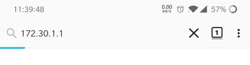
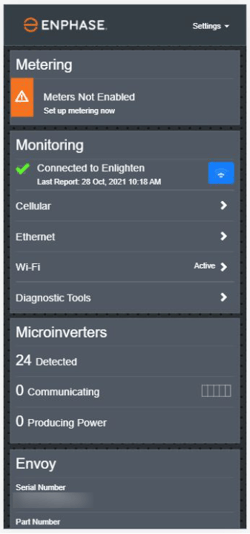
Step 2: Connect your Phone/Laptop to the Gateway
|
Step 3: Forget the Old Wi-Fi Network
- If your system is currently not connected to any Wi-Fi network, you can skip this and jump ahead to step 4.
- On the Gateway Configuration page, tap on Wi-Fi in the Monitoring panel. When prompted, provide the Gateway Username (envoy) and password (last six digits of the Gateway's serial number).
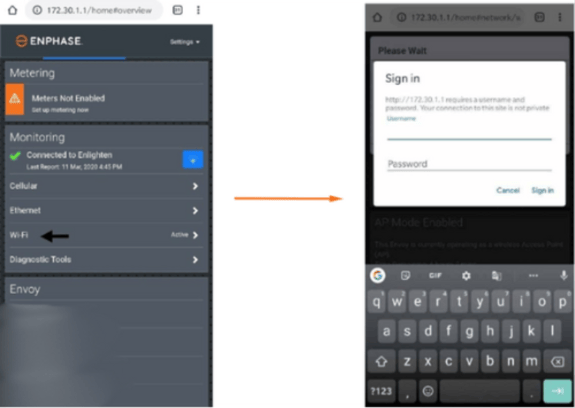
- On the Wi-Fi configuration page, select 'More Info' --> Click 'Forget this Network' --> Click 'Forget'.
- Doing this will disconnect the Gateway from any previously connected Wi-Fi networks enabling it to be connected to a new network.
Step 4: Connect your Home Wi-Fi Network
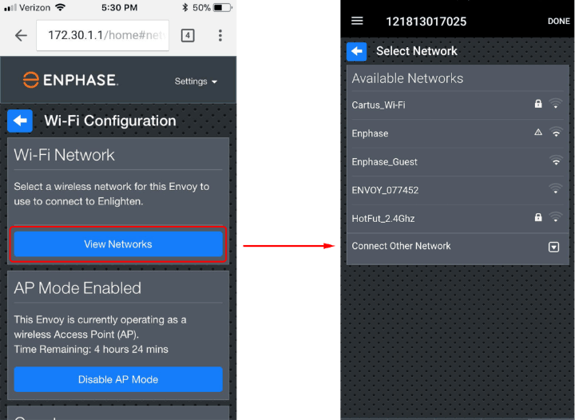
- Tap the View Networks button, then select your home network from the list of available networks.
- Enter the password for your home network and tap Connect.
Step 5: Check if Connection was Successful
- If the top LED light against the cloud icon lights up solid green, congratulations! You're back online.
Next Steps
When reconnecting your system back to the internet, your home data may be delayed. In majority of cases, your inverter should communicate back to your home monitoring relatively fast. In the case for Enphase, it typically it takes about 1 hour for each day of your Gateway being offline. For example, if your Gateway was offline for 30 days your system should fully sync up in about 30 hours.
If you encounter any further issues during this process, raise a support ticket with SolarHub’s Support and Service Team for further assistance.