---
title: Reconnecting your Sigenergy System to Wi-Fi
description: Reconnecting your Sigenergy System to Wi-Fi
---
[Skip to content](https://knowledge-base.solarhub.net.au/reconnecting-your-sigenergy-system-to-wi-fi#main-content)

- [Customer Portal](https://441665238.hs-sites-ap1.com/tickets-view)
Open main navigation
Close main navigation
- [Customer Portal](https://441665238.hs-sites-ap1.com/tickets-view)
How can we help you?
- There are no suggestions because the search field is empty.
1. [SolarHub Knowledge Base](https://knowledge-base.solarhub.net.au/?hsLang=en-au)
2. [Troubleshooting](https://knowledge-base.solarhub.net.au/troubleshooting?hsLang=en-au)
3. [Sigenergy](https://knowledge-base.solarhub.net.au/troubleshooting?hsLang=en-au#sigenergy)
# Reconnecting your Sigenergy System to Wi-Fi
### Article Contents
**[Initial Steps](https://knowledge-base.solarhub.net.au/reconnecting-your-sigenergy-system-to-wi-fi#init)**
**[Reconnecting to Wi-Fi](https://knowledge-base.solarhub.net.au/reconnecting-your-sigenergy-system-to-wi-fi#wifi)**
[**Next Steps**](https://knowledge-base.solarhub.net.au/reconnecting-your-sigenergy-system-to-wi-fi#next)
### Video Demonstration
### Initial Steps
- **Ensure Correct Wi-Fi Connection:** All connections require a 2.4GHz home internet connection. If your current internet plan and router only allow 5.0GHz connection, contact your internet provider to resolve this issue.
- **Wi-Fi Strength:** Ensure that the connection to your system is strong enough to operate. If your connection isn't strong, you may need to consider the use of a Wi-Fi extender. There are two methods of testing your connection:
- **Quick Method:** Seeing how many bars of internet connection your smartphone or tablet receives when standing next to your system.
- **Accurate Method:** Measuring your connection strength via website or app. We personally recommend using [WiFiman by Ubiquiti](https://wifiman.com/).
### Reconnecting to Wi-Fi
**Step 1: Accessing the mySigen App **
- Open the mySigen app. If you are required to login, your login credentials should’ve been provided during the system’s installation. If you can’t access your login credentials, contact us and we can help source them for you.
- At the far bottom of your screen (on the menu tab), click onto the settings tab.
- Open the Network Configure options in settings.
| **Step 2: Restarting your Sigenergy System ** 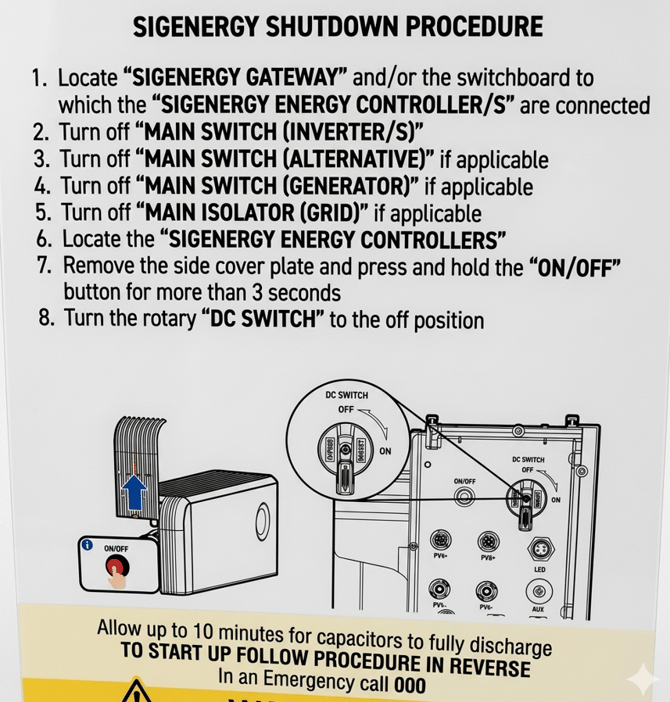  - In the mySigen app, click the next button at the bottom of the page. You will be taken to a QR scanning screen. - 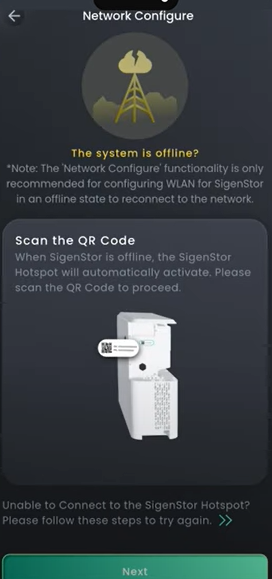 | |
| --- | --- |
| 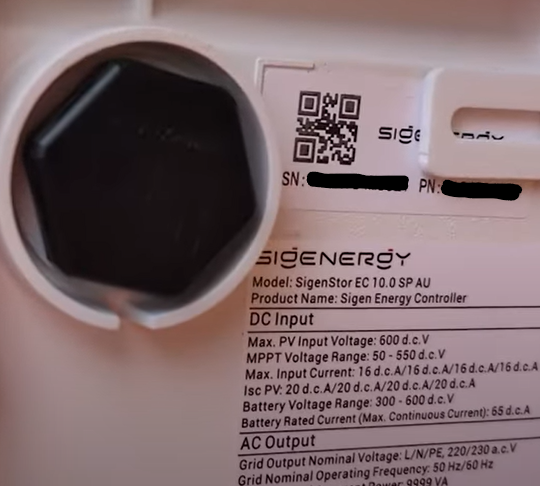 | **Step 3: Locating your System’s QR Code ** - To locate the QR code, first, slide off the top cover of the SigenStor, followed by lifting off the panel on the right-hand side of the system. You should see a QR code with your system’s serial number directly below it. - Scan the QR code on the app. You should receive a pop-up message that your system is offline. Click “No, I want to Connect Device Hotspot”, then select Next on the following screen. |
| --- | --- |
**Step 4: Reconnecting to your Wi-Fi **
- You will receive a pop-up, asking you temporarily connect to device. Click Connect. Please note, it may take a few attempts for your phone to connect to the inverter's hotspot.
- Your home network should show be listed. Click on it and enter your Wi-Fi password.
- Finally, click finish and place your taken off panels back onto your SigenStor system.
### Next Steps
When reconnecting your system back to the internet, your home data may be delayed. In majority of cases, your inverter should communicate back to your home monitoring relatively fast. If this isn't the case, give the system 24 hours to reconfigure and the issue should be fixed.
**If this process is unsuccessful, [raise a support ticket](https://solarhub.net.au/raise-a-support-ticket/) with SolarHub’s Support and Service Team for further assistance.**
- [FAQs](https://knowledge-base.solarhub.net.au/faqs?hsLang=en-au#main-content)
- [General FAQs](https://knowledge-base.solarhub.net.au/faqs?hsLang=en-au#general-faqs)
- [Enphase](https://knowledge-base.solarhub.net.au/faqs?hsLang=en-au#enphase)
- [Fronius](https://knowledge-base.solarhub.net.au/faqs?hsLang=en-au#fronius)
- [Sigenergy](https://knowledge-base.solarhub.net.au/faqs?hsLang=en-au#sigenergy)
- [SolarEdge](https://knowledge-base.solarhub.net.au/faqs?hsLang=en-au#solaredge)
- [Tesla](https://knowledge-base.solarhub.net.au/faqs?hsLang=en-au#tesla)
- [Troubleshooting](https://knowledge-base.solarhub.net.au/troubleshooting?hsLang=en-au#main-content)
- [General Troubleshooting](https://knowledge-base.solarhub.net.au/troubleshooting?hsLang=en-au#general-troubleshooting)
- [Enphase](https://knowledge-base.solarhub.net.au/troubleshooting?hsLang=en-au#enphase)
- [Fronius](https://knowledge-base.solarhub.net.au/troubleshooting?hsLang=en-au#fronius)
- [Reposit](https://knowledge-base.solarhub.net.au/troubleshooting?hsLang=en-au#reposit)
- [Sigenergy](https://knowledge-base.solarhub.net.au/troubleshooting?hsLang=en-au#sigenergy)
- [SolarEdge](https://knowledge-base.solarhub.net.au/troubleshooting?hsLang=en-au#solaredge)
- [Tesla](https://knowledge-base.solarhub.net.au/troubleshooting?hsLang=en-au#tesla)
- [Sunpower](https://knowledge-base.solarhub.net.au/troubleshooting?hsLang=en-au#sunpower)
- [Sungrow](https://knowledge-base.solarhub.net.au/troubleshooting?hsLang=en-au#sungrow)
- [Solax](https://knowledge-base.solarhub.net.au/troubleshooting?hsLang=en-au#solax)
- [General](https://knowledge-base.solarhub.net.au/general?hsLang=en-au)
[](http://solarhub.net.au)
[mailto:email@email.com](mailto:email@email.com)
Copyright © 2025, SolarHub