
Article Contents
Configuring Powerwall Wi-Fi Connection
Initial Steps
- Ensure Correct Wi-Fi Connection: All connections require a 2.4GHz home internet connection. If your current internet plan and router only allow 5.0GHz connection, contact your internet provider to resolve this issue.
- Wi-Fi Strength: Ensure that the connection to your system is strong enough to operate. If your connection isn't strong, you may need to consider the use of a Wi-Fi extender. There are two methods of testing your connection:
- Quick Method: Seeing how many bars of internet connection your smartphone or tablet receives when standing next to your system.
- Accurate Method: Measuring your connection strength via website or app. We personally recommend using WiFiman by Ubiquiti.
- Downloading the Tesla App: If you haven’t already, download and install the Tesla app on your smartphone or tablet from the App Store or Google Play Store. If you don’t know your login credentials, please raise a support ticket with SolarHub and we will assist you.
 |
 |
Google Play Store |
Apple App Store |
Reconnecting your Gateway
|
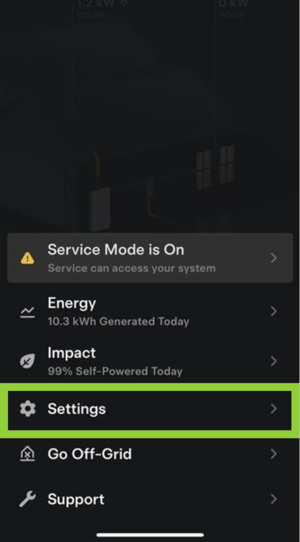
Step 1: Locate Wi-Fi Configuration Page
|
 |
|
|
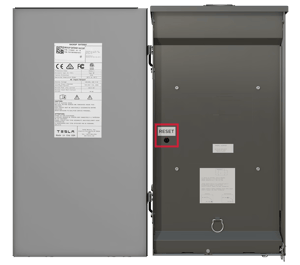
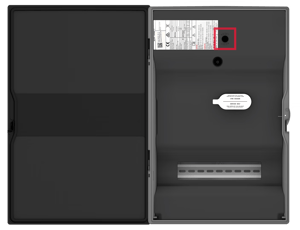
Step 2: Connecting to the Gateway
|
|
|
|
Gateway 1 |
Gateway 2 |
|
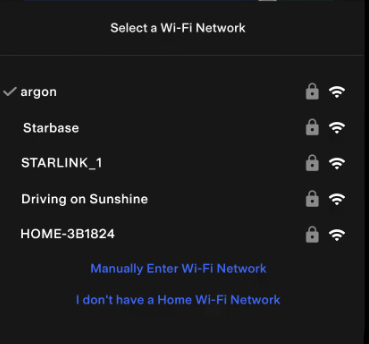
Step 3: Connect to Home Network
|
|
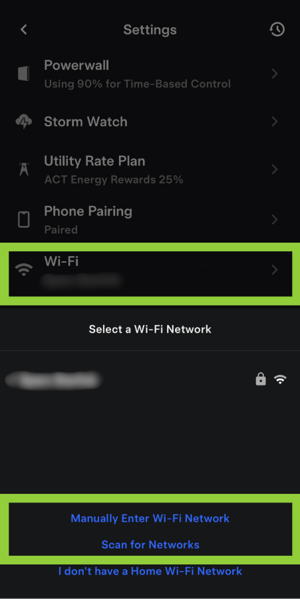
Configuring Powerwall Wi-Fi Connection
|
 |
Next Steps
When reconnecting your battery and gateway back to the internet, your home data may be delayed. In majority of cases, your system should communicate back to your home monitoring relatively fast. If this isn't the case, give the system 24 hours to reconfigure and the issue should be fixed.
If this process is unsuccessful, raise a support ticket with SolarHub’s Support and Service Team for further assistance.