
Article Contents
Powerwall 2
.png?width=349&height=349&name=LED%20Indicator%20(1).png) |
LED State | Description |
| Solid Green | Powerwall is currently ON and idle, communications online | |
| Pulsing Green (slowly fading ON and OFF) | Powerwall is currently operational (charging/discharging) | |
| Flashing Green (rapidly ON and OFF) | Fault detected (communication lost or system failure) | |
| OFF | Powerwall is currently OFF |
Powerwall 3
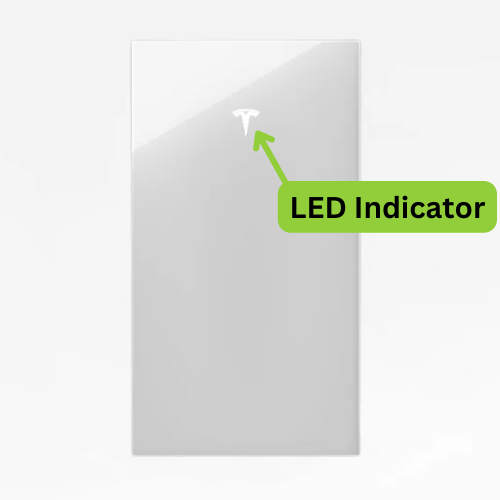 |
LED State | Description |
| Solid White | Powerwall is currently operational (charging/discharging) | |
| Flashing White | Powerwall is currently idle | |
| Flashing Red | Fault detected (communication lost or system failure) | |
| OFF | Powerwall is currently OFF |
Troubleshooting
If your Powerwall is unresponsive, it may be necessary to turn off or power cycle the system. Note that power cycling the system must be done in the proper sequence. You can find articles for both the Powerwall 2 and Powerwall 3 below:
If this doesn't work, check to see whether or not you still have connection established to your Powerwall. This can be checked through the app. If your app indicates that your system is offline, try reconnecting your system to Wi-Fi using the article below:
If this process is unsuccessful, raise a support ticket with SolarHub’s Support and Service Team for further assistance.