
Article Contents
Overview
The Enphase Enlighten app lets you monitor your solar system’s performance in real time, showing energy production, consumption, and savings. It provides detailed system health insights and alerts so you can track efficiency and quickly identify any issues.
Initial Steps
- Downloading the Enphase Enlighten App: If you haven’t already, download and install the Enphase Enlighten app on your smartphone or tablet from the App Store or Google Play Store. If you don’t know your login credentials, please raise a support ticket with SolarHub and we will assist you.
Status Page
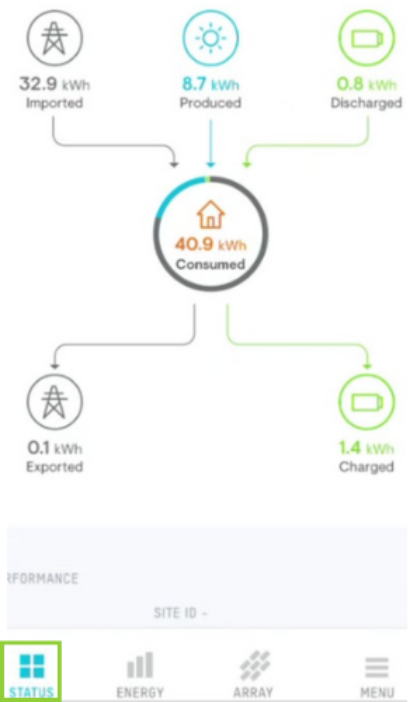
Once you login to the Enphase Enlighten app, the Status Page will be the default opening screen. This page is designed to give you quick insights to your system as well as checking the current system status (as noted by the indicator at the top of the page).
|
Energy Flow Overview: This graph represents how the distribution of the energy in your home being consumed and the direction of additional generated energy. If your system doesn’t include a battery, the graph will only feature grid imported energy, solar produced energy and grid exported energy. The example on the right represents how majority of the energy so far that day has been imported from the grid (32.9 kWh), with solar production and the battery discharging proving less (8.7 kWh and 0.8 kWh). The centre of the graph shows how much energy the household has used up until this point, and the graph also shows how 1.4 kWh of excess energy not needed for home consumption has contributed towards recharging the battery. You can also click on the Live Status tab to show the current flow of energy within your household. |
|
|
|
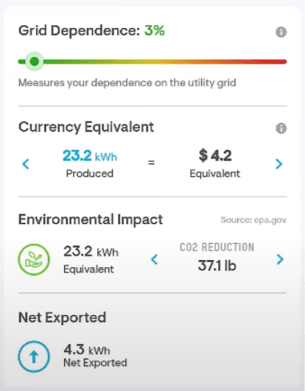
Performance Breakdown: This section is broken into four main parts:
|
|
|

Energy Page
|
This page and chart provides a breakdown of your production versus your consumption. Anything above the line represents energy being supplied, while anything below the line represents energy being used. Here’s a breakdown of each component:
Just below this graph (if you have a battery installed), will be a Battery State of Charge graph. This represents the battery's charge throughout the selected time period. |
 |
Menu Page
|
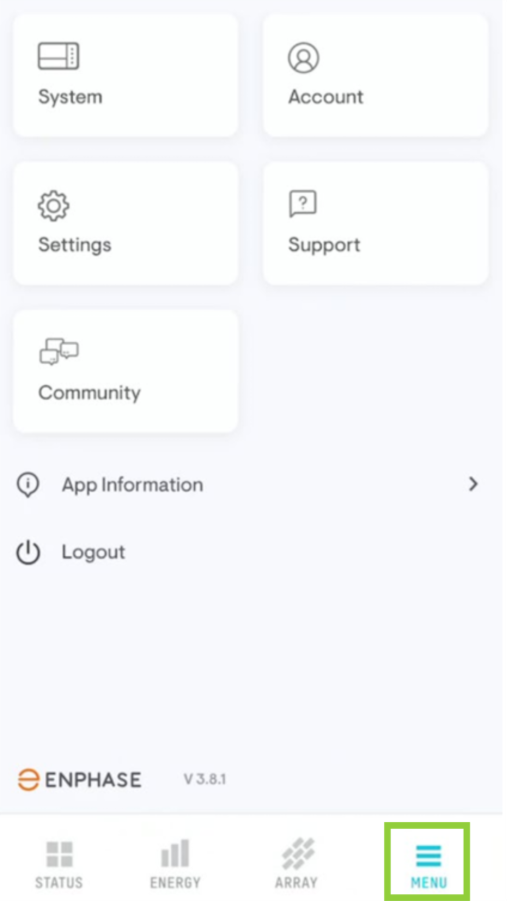
System: Overview and the reporting of your devices. This includes the serial numbers and status of system devices, site details, live status and vitals of your system, as well as status history. Account: The system owner's details and settings. This includes personal information, system preferences (site name etc.), notifications and external consumption access control. Settings: Customisation and maintenance to your system and app. This includes setting up internet connection, customising your electricity rate (recommended to keep on default), system performance, as well as Dark Mode for your phone. Support and Community: Support page offers a list of FAQs and their answers. The Community page is designed to connect active users worldwide to find answers for issues. It's also possible to browse through recurring topics and community forums to find what you need. |
 |
If you have any additional enquiries or if you’re still unsure, feel free to contact us by raising a Support Ticket and we can investigate your issue further.