---
title: "Understanding the App: mySolarEdge"
description: Understanding the mySolarEdge app
---
[Skip to content](https://knowledge-base.solarhub.net.au/understanding-the-app-mysolaredge#main-content)

- [Customer Portal](https://441665238.hs-sites-ap1.com/tickets-view)
Open main navigation
Close main navigation
- [Customer Portal](https://441665238.hs-sites-ap1.com/tickets-view)
How can we help you?
- There are no suggestions because the search field is empty.
1. [SolarHub Knowledge Base](https://knowledge-base.solarhub.net.au/?hsLang=en-au)
2. [FAQs](https://knowledge-base.solarhub.net.au/faqs?hsLang=en-au)
3. [SolarEdge](https://knowledge-base.solarhub.net.au/faqs?hsLang=en-au#solaredge)
# Understanding the App: mySolarEdge
### Article Contents
**[Overview](https://knowledge-base.solarhub.net.au/understanding-the-app-mysolaredge#over)**
**[Initial Steps](https://knowledge-base.solarhub.net.au/understanding-the-app-mysolaredge#init)**
**[Dashboard](https://knowledge-base.solarhub.net.au/understanding-the-app-mysolaredge#dash)**
**[Solar Panel Layout](https://knowledge-base.solarhub.net.au/understanding-the-app-mysolaredge#lay)**
**[Direct Device control](https://knowledge-base.solarhub.net.au/understanding-the-app-mysolaredge#direc)**
### Overview
mySolarEdge is a mobile app developed by SolarEdge that allows homeowners to easily monitor and manage their solar energy system. Through the app, users can track real-time and historical solar production, household energy consumption, and battery storage performance. It provides insights into system efficiency, potential savings, and environmental impact. Beyond monitoring, mySolarEdge also supports remote device control and automation for compatible smart home appliances, helping users maximize self-consumption and reduce reliance on the grid. The app is designed to make solar energy management simple, transparent, and accessible from anywhere.
### Initial Steps
- **Downloading the mySolarEdge App: **If you haven’t already, download and install the mySolarEdge app on your smartphone or tablet from the [App Store](https://apps.apple.com/us/app/mysolaredge/id1473952773) or [Google Play Store](https://play.google.com/store/apps/details?id=com.solaredge.homeowner&hl=en-US). If you don’t know your login credentials, please [raise a support ticket](https://solarhub.net.au/raise-a-support-ticket/) with SolarHub and we will assist you.
- **Configuring the Wi-Fi for your inverter:** Follow the guides below on how to connect your inverter to your home network.
- [Reconnecting a Screenless SolarEdge Inverter to Wi-Fi](https://knowledge-base.solarhub.net.au/reconnecting-a-screenless-solaredge-inverter-to-wifi?hsLang=en-au)
- Reconnecting a Screened SolarEdge Inverter to Wi-Fi
### Dashboard
When you first log in to the mySolarEdge app, you will be greeted by the main dashboard. The front page offers many useful features. Here’s a breakdown for each starting from the top of the page and working our way down.
| **Energy Flow Breakdown:** Visual representation of the current energy flow within your home (if your PV system is also connected to a battery and EV charger, these will also be represented). The diagram also represents the energy that is currently being generated as well as the total energy produced that day. Your energy can flow in two main directions: into your home or to the grid. Both pathways are given a numerical value to represent how much energy is going into each. The flow of the graph is indicated by two colours: - **Green:** Indicates that your home is currently operating using produced energy from your panels. Most commonly occurs during the middle of the day. - **Orange:** Indicates that your home is currently operating using energy drawn from the grid. This occurs when your consumption is higher than your production (e.g., during peak periods or at night). **Total Energy Production:** A quick overview of your historical energy production. This includes your production for the current month, current year, and the system’s lifetime. | ###  |
| --- | --- |
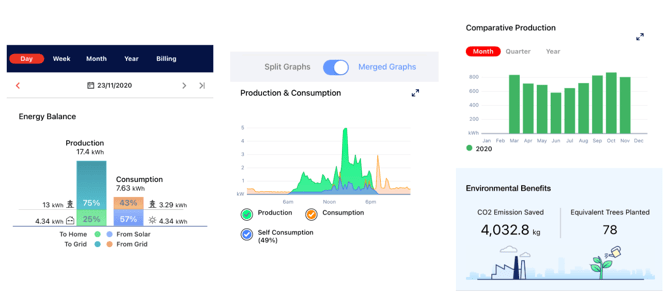
**Production vs. Consumption:** This category is broken down into 4 main sections. Which can be viewed over different time periods. This includes by day, week, month, and year. The time range can also be customized to align with your billing period.
- **Energy Balance:** A side-by-side bar graph of your production and consumption for a given period. This is further divided into where production and consumption are being used.
- **Production Graph:** A timeline showing how your energy production has evolved over the selected period.
- **Consumption Graph:** A timeline showing how your energy consumption has evolved over the selected period. These two graphs can be either shown separately or merged together.
- **Comparative Production Breakdown:** A comparison of your energy production against other time periods.
If you find any of these graphs confusing, consider reading our article[*“Understanding your Solar Production and Energy Consumption Throughout the Year”*](https://knowledge-base.solarhub.net.au/understanding-your-solar-production-and-consumption-throughout-the-year?hsLang=en-au).
**Environmental Benefits:** A short summary of your system’s environmental impact, including reductions in CO₂ emissions and the equivalent number of trees planted.
| 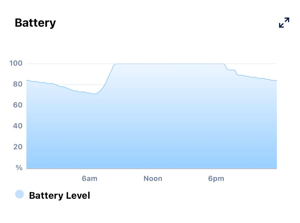 | **Battery Monitoring:** If you have a battery installed, this section displays how your battery’s charge has changed over time. This graph can be especially useful for ensuring that your battery is operating as intended. *Note: This feature is only compatible with SolarEdge batteries. * |
| --- | --- |
| ### Solar Panel Layout Click on the solar panel icon on the bottom right of the menu bar. This will take you to a visual representation of your solar panel layout. This window provides you with information on how each of your panels performs during the day. **Important note:** The solar panel data is accumulative for the day, not the production at a given time. It is normal for panels that are closer to the east to produce more at the start of the day than panels further west. All panels in the same orientation (if there are no obstructions or faults) should produce similar energy by the end of the day. | ### 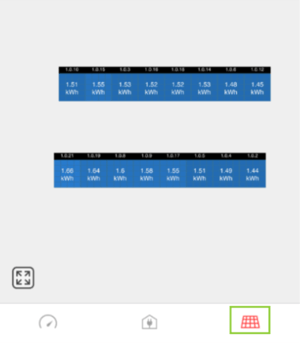 |
| --- | --- |
### Direct Device Control
If you own smart devices in your home that can be remotely turned on and off, the mySolarEdge app allows you to control them directly. Click the device icon on the bottom of the menu bar to manage them. This will open a window where you can add, manage, and even automate your electrical devices. Device automation creates new opportunities to improve self-consumption and make better use of your solar production during the day, helping reduce your power bill.
| In addition to smart devices, this feature also lets you manage your system’s battery. At the top of the page, click on the ‘Storage’ tab. This will take you to a menu where you can view your battery’s specifications. The main customization available is adjusting the backup reserve. While home batteries are often set to the minimum reserve by default, you can increase it if you are concerned about blackouts or want extra stored power. Select ‘Backup Reserve’ and use the slider to set your desired storage level (note: the manufacturer defines a minimum required storage capacity). Other customizable settings include: - **Maximise Self Consumption (Default):** Use as much solar available to power battery and home. We recommend keeping your system on this mode. - **Time of Use:** Prioritize solar and stored energy when utility rates are high. - **Manual Control:** Defining specific times for the battery to charge and discharge. - **Backup only mode:** Keep battery at full capacity to utilize when the grid is off. | ### 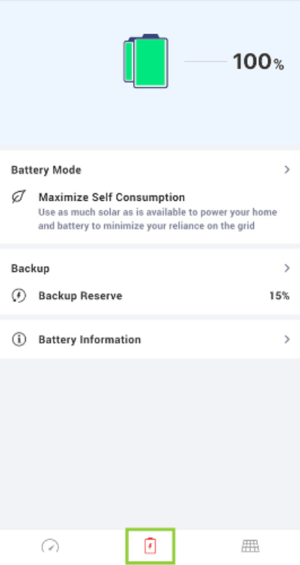 |
| --- | --- |
If you have any additional enquiries or if you’re still unsure, feel free to contact us by raising a [Support Ticket](https://solarhub.net.au/raise-a-support-ticket/) and we can investigate your issue further.
- [FAQs](https://knowledge-base.solarhub.net.au/faqs?hsLang=en-au#main-content)
- [General FAQs](https://knowledge-base.solarhub.net.au/faqs?hsLang=en-au#general-faqs)
- [Enphase](https://knowledge-base.solarhub.net.au/faqs?hsLang=en-au#enphase)
- [Fronius](https://knowledge-base.solarhub.net.au/faqs?hsLang=en-au#fronius)
- [Sigenergy](https://knowledge-base.solarhub.net.au/faqs?hsLang=en-au#sigenergy)
- [SolarEdge](https://knowledge-base.solarhub.net.au/faqs?hsLang=en-au#solaredge)
- [Tesla](https://knowledge-base.solarhub.net.au/faqs?hsLang=en-au#tesla)
- [Troubleshooting](https://knowledge-base.solarhub.net.au/troubleshooting?hsLang=en-au#main-content)
- [General Troubleshooting](https://knowledge-base.solarhub.net.au/troubleshooting?hsLang=en-au#general-troubleshooting)
- [Enphase](https://knowledge-base.solarhub.net.au/troubleshooting?hsLang=en-au#enphase)
- [Fronius](https://knowledge-base.solarhub.net.au/troubleshooting?hsLang=en-au#fronius)
- [Reposit](https://knowledge-base.solarhub.net.au/troubleshooting?hsLang=en-au#reposit)
- [Sigenergy](https://knowledge-base.solarhub.net.au/troubleshooting?hsLang=en-au#sigenergy)
- [SolarEdge](https://knowledge-base.solarhub.net.au/troubleshooting?hsLang=en-au#solaredge)
- [Tesla](https://knowledge-base.solarhub.net.au/troubleshooting?hsLang=en-au#tesla)
- [Sunpower](https://knowledge-base.solarhub.net.au/troubleshooting?hsLang=en-au#sunpower)
- [Sungrow](https://knowledge-base.solarhub.net.au/troubleshooting?hsLang=en-au#sungrow)
- [Solax](https://knowledge-base.solarhub.net.au/troubleshooting?hsLang=en-au#solax)
- [General](https://knowledge-base.solarhub.net.au/general?hsLang=en-au)
[](http://solarhub.net.au)
[mailto:email@email.com](mailto:email@email.com)
Copyright © 2025, SolarHub